How to Create a Baseball Broadcast AI Photo (With Prompts)
On social media, AI images that look like you accidentally appeared in a baseball broadcast are getting a lot of attention.
Once you add a person sitting in the stands, a score graphic at the edge of the screen, and that slightly pulled-back broadcast framing, even a normal photo can feel like a real TV moment.
This guide explains how to make a baseball-watching style AI photo with SeaArt AI, including copy-ready prompts.

What Is a Baseball-Watching AI Photo?
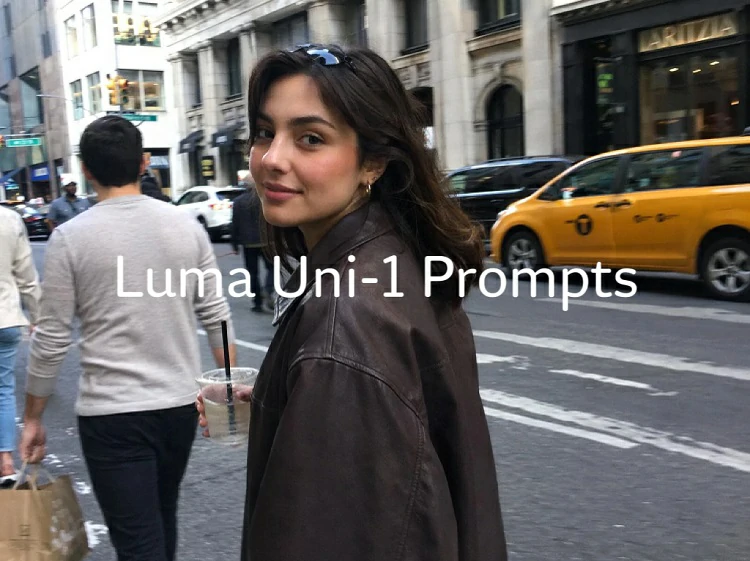
A baseball-watching AI photo is an AI edit that uses your own picture and recreates the vibe of watching a game from the crowd at a stadium.
The key is not just swapping in a ballpark background. You want it to look like you were briefly caught on a TV broadcast camera. A natural game-day expression and a camera angle that feels like it was shot from a bit of a distance can instantly push it into "broadcast screenshot" territory.

That surprise factor is also why the trend spreads quickly. It looks like a real broadcast frame, but it's actually AI. And because you can get a similar look from your own photo, it's easy to join in.
It also matches baseball season well. Add a cheering uniform, stadium lighting, and a bit of crowd atmosphere, and you can get a surprisingly convincing result.
How to Make a Baseball-Watching AI Photo
You don't need a special studio setup. All you need is a base photo and a prompt that tells the model what kind of broadcast-like atmosphere you want.
Here, we'll use SeaArt AI as an example. It's easy to keep the subject's look while adjusting the background and framing, so you can get a natural "cameo in a baseball broadcast" style.
The workflow is simple: you can create it in three steps.
Step 1. Open SeaArt AI and click Image Generation to go to the generation page.

Step 2. Pick a model and upload the photo you want to edit. If you're not sure where to start, GPT Image 2 or Nano Banana 2 tends to be easy to work with.

Step 3. Copy the prompt below into the prompt box and click Create.
Baseball-Watching AI Photo Prompt
Use the uploaded reference image as the strongest identity reference. The woman must look like the exact same adult woman as in the reference image. Not a similar Korean woman - make her look like the same person as the reference image.
Keep her exact facial identity as a high priority. Keep the same small oval face, the same delicate jawline, the same large clear eyes, the same eye spacing, the same eyelid shape, the same straight nose, the same soft calm pink lips, the same translucent fair skin tone, the same refined calm expression, and the same long black, softly wavy hair.
Create an ultra-realistic, natural screenshot from a KBO baseball broadcast, as if the same woman was accidentally caught by a live TV camera in the stands.
Important:
Her face must stay closer to the reference image than to a generic stadium fan. Do not turn her into a different person. Do not widen her face, age her up, sharpen her features, make her more Western, or make her more idol-like. Keep the delicate studio-portrait identity, while naturally placing her into a real ballpark environment.She is sitting among lively Korean baseball spectators.

This prompt strongly tells the model to keep the same face as the reference image first, then adds the "accidentally on a KBO broadcast" atmosphere on top. If the face starts looking like a different person, keep the identity part and regenerate - it usually stabilizes faster that way.
If the overall vibe feels slightly off on your first try, don't change the face instructions. Tweak only the background and expression. Small changes are easier to control, like making the crowd busier, keeping the smile more subtle, or adding a natural "noticed the camera" look.
1234Tips to Nail the "Accidentally Caught on Broadcast" Look
After generating once, you may notice some mismatches: the face looks good but the background feels weak, the stadium atmosphere is there but the person looks less like themselves, or only the score display looks unnatural.
In that case, instead of recreating everything from scratch, it is usually more stable to make small adjustments based on the image you already generated. In SeaArt AI, you can also reload a generated image and adjust only the parts you are concerned about.
If the Face Looks Like a Different Person, Use the Reference Photo More Strongly
If the face feels different from the reference photo, prioritize the person’s identity before adding more background or outfit instructions.
Instead of using the generated image as-is, refer to the original reference photo again and regenerate with added instructions to preserve the facial features.
Tweak phrase:
Please keep the face outline, eyes, nose, mouth, and hairstyle as much as possible so the person looks like the same individual as the reference image. Prioritize facial identity over background and outfit.
When you want to fix the face, it is more stable not to change the expression or hairstyle too much at the same time. First, bring back the person’s likeness, then adjust the background and small details.
If the Stadium Atmosphere Feels Weak, Strengthen Only the Background
If the person looks good but the image feels like a normal outdoor photo or event venue, add more background details. You do not need to change the face instructions too much. Keep the person as they are and adjust only the background toward a baseball stadium setting.
Tweak phrase:
Keep the person's face and outfit as much as possible, and change the background to a lively baseball stadium crowd. Add cheering spectators, blurred uniforms, bright stadium lights, and a slightly blurred LED board.
If you make the background too detailed, crowd faces and text are more likely to break. For a broadcast-style image, a slightly blurred background usually looks more natural.
If It Does Not Feel Like a Broadcast Screen, Adjust the Camera Angle
Sometimes the image looks like a stadium photo, but not like a TV broadcast. In that case, changing the camera distance is effective. For the “accidentally caught on broadcast” look, a slightly distant telephoto-style angle works better than a close-up face shot.
Tweak phrase:
Make the framing look like it was shot from far away with a telephoto camera for a TV broadcast. Add a slightly soft video feel, light compression, and imperfect, accidental framing.
If the result looks too much like a polished portrait, adding a slightly soft video feel and an imperfect, accidental framing style can make it easier to adjust.
If the Score Display or Text Breaks, Do Not Force It to Be Readable
In AI images, small text and score displays can break. This is a very common issue.
If you try to make the score display clearly readable, unnatural text or something resembling a real logo may appear. If you want to prioritize the overall look, it is easier to use an abstract scoreboard-style design instead of readable text.
Tweak phrase:
Add a fictional scoreboard-style graphic in the top-left corner that is not readable. Do not include real team names, broadcaster logos, or real match results.
If you want clean text for posting, it is more stable to add a score-style graphic in an image editor after generating the AI image.
If Hands or Props Break, Keep the Action Simple
When you make the person hold an iced drink or cheering goods, the hands and fingers may break.
In that case, reduce the props or change the composition so the hands do not stand out. For a broadcast-style image, the hands do not need to be shown clearly.
Tweak phrase:
Don't make the hands stand out. Make it look like she is naturally holding an iced drink. Do not emphasize fingers or small props in detail.
Bonus: How to Animate Your Baseball-Watching AI Photo
Once your baseball broadcast AI photo is done, you can also animate it using SeaArt AI's Video Generation feature.
It's fun as a still image, but adding a little motion can make it feel even more like real broadcast footage.
First, save the generated image. Then open the SeaArt AI video generation page, choose a video model, upload the image, and write a short description of the motion you want.
Video Prompt Example
Korean professional baseball broadcast crowd seats. The woman on camera looks away to the side with a slightly shy expression, then looks back at the camera and smiles naturally. She lightly waves the cheering sticks in her hand. Realistic KBO broadcast-style camera, natural stadium lighting, slight movement from the crowd in the background. Avoid face distortion, unnatural hand motion, and overly large expression changes.

Notes When Animating
When you turn it into a video, score overlays and small text may distort.
If you want the text to stay clean, one option is to generate a version without text first, then add scoreboard graphics later during editing. Trying to keep perfect text using AI alone can end up looking unnatural.
If the face breaks, try these three: reduce motion strength, make the clip shorter, or switch to a more stable base image.
FAQ
Can I make a baseball-watching AI photo using only a phone?
SeaArt AI runs online, so you can create it from a mobile browser. The screen is smaller on a phone, so prompt editing and checking details can feel a bit cramped. If you want finer control, working on a computer is easier.
Can I keep my own face while editing?
If you upload a reference photo and tell the prompt to preserve facial features, it's easier to keep your look. Still, this is an AI edit, so the face may not match perfectly every time. If the first result feels off, try a different reference image, or add extra instructions not to change the face too much.
Is it OK to include real team logos?
I don't recommend it. If you just want the broadcast vibe, fictional logos and fictional score graphics are enough. Using real team names or broadcaster names can make people mistake it for a real broadcast image.
Should I say it's AI when posting?
If you post on social media, it's safer to make it clear that the image was made with AI. For example, adding a short note like "AI edit," "broadcast-style AI image," or "baseball-watching AI photo" helps avoid confusion. It's more natural to post it as an AI-made image than to make it look like real broadcast footage.
What if the face breaks when I make it a video?
Keeping the video short and using only small motions (like a blink) helps prevent face distortion. If it still looks unnatural, switching the base image often improves it.
Summary
With a reference image and a prompt, you can make a realistic "caught on a baseball broadcast" style AI photo without special preparation.
In SeaArt AI, you can also animate it after generating the image. A little motion can sell the broadcast vibe even more when you share it on social media.
Don't try to lock everything in on the first generation. Adjust in small steps. Start by using the prompt as-is and generate one version.
12345