SeaHot Unleash Your Creativity
Transform your ideas into stunning AI-generated art and images today!
Try It Free Now
SeaHot AI - Free AI Art Generator

20 Grok Video Prompts to Generate Videos and Control Motion

杉野 りんご
4 min read
Try 20 tested Grok video prompts for anime, realistic scenes, and text effects, with examples that help guide shots, style, and movement.

When you generate a video with Grok, sometimes the subject does not move the way you expected, or the result does not look like what you had in mind. In many cases, the problem is not the tool itself, but the prompt being written with an image mindset instead of a video mindset.

In this article, we put together a simple 5-part prompt template that many creators use, along with 20 ready-to-use Grok video prompts. If you want longer clips or image-to-video creation, SeaArt AI is also worth trying as an AI video generator alternative.

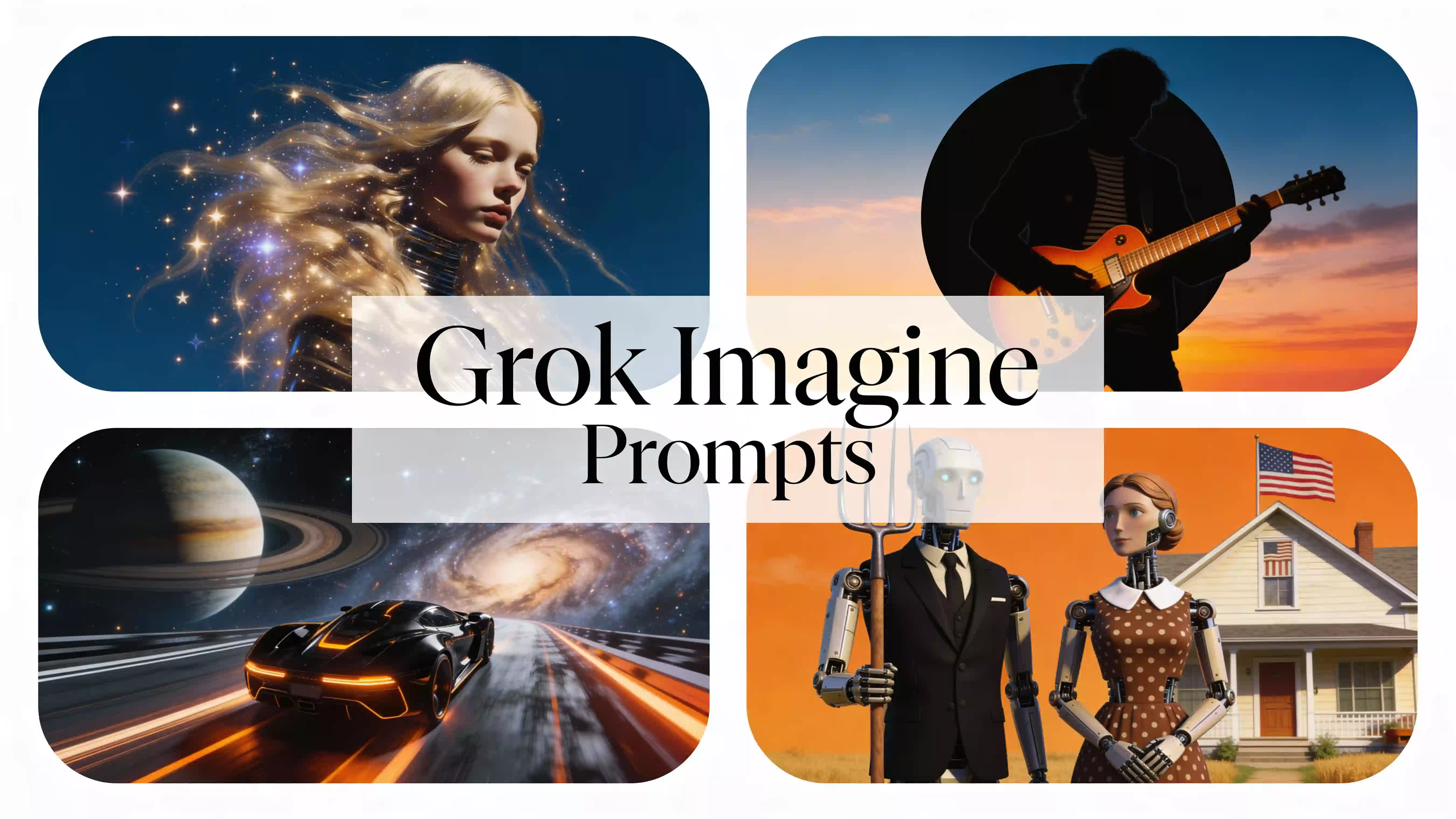
Grok Video Prompts Guide

💡 Note: This article only includes general and safe prompts. Avoid using identifiable real people, and do not use the tool in ways that violate third-party rights.

Why Your Grok Video Is Not Moving the Way You Want

A common mistake when generating videos is writing only states or adjectives, such as "beautiful" or "cinematic," without specifying clear motion, like "running" or "turning her head." Remember: a video is not a single image. It is about designing what happens over time and how each element moves on camera. Better prompts usually lead to better Grok video generation results.

Image Mindset vs. Video Mindset

❌ Bad example (image mindset):

Beautiful girl, beach, cinematic

Result: the girl almost stays still, and only the background shakes slightly, like a static image.

✅ Good example (video mindset):

Side tracking shot of a woman walking on the beach, hair blowing in the wind, white dress gently flowing, sparkling ocean background, photorealistic, smooth motion, 5s, 4K

Result: the hair moves with the wind, the walking feels visible, and the camera can follow the motion much more naturally.

🔸 The key is to decide what happens first, not just what is visible. For video prompts, it works better to describe the movement shot first, almost like writing a short technical script.

Grok Video Prompt Template

👉[Camera] + [Subject] + [Action] + [Context] + [Style]

If you get stuck, use this order in a single line and put extra focus on [Action], the verb. That usually helps the motion come out more consistently. This section works as a quick grok video prompt guide before you start writing your own scenes.

Start with this template first, then add details like color, time of day, atmosphere, lighting, or camera feel.

20 Practical Grok Video Prompts

If you want a fast starting point, these are some of the best grok video prompts to copy, test, and refine for smoother motion control.

They follow the structure [Camera] + [Subject] + [Action] + [Context] + [Style]. Start by copying them, then experiment by changing the action or camera direction.

Cinematic and Realistic

This is where the result often feels atmospheric, but the subject stays still. To make it more stable, decide the action and shot distance first.

1. Aerial - Futuristic City

Aerial drone shot flying over a futuristic city at night, with neon lights reflecting on wet streets, hyper-realistic style, 4K.

2. Nature - Stormy Sea

Wide shot of a rough ocean, with waves crashing against dark cliffs and lightning in the distance, cinematic lighting.

3. Person - Smile in a Cafe

Medium shot of a woman sitting in a cafe, drinking coffee and smiling at the camera, with natural light coming through the window.

4. Urban Walk - Rainy London

Tracking shot of a man in a trench coat walking down a rainy London street, reflections on the pavement, melancholic mood.

5. Animal - Cat Playing

Low-angle close shot of a fluffy cat jumping to catch a butterfly in a sunny garden, slow motion, detailed fur texture.

Anime and 2D

To make a 2D anime video feel more consistent, lock in the style first and limit the motion to one action and one effect.

1. Magic - Spell Casting

2D anime style, magical girl casting a spell, colorful sparkles and energy swirling around her, inspired by Studio Ghibli.

2. Sci-Fi - Cyberpunk

Cyberpunk anime style, futuristic motorcycle speeding through a neon tunnel, leaving light trails behind, illustration inspired by Akira.

3. Daily Life - Girl Studying

Lo-fi anime style, girl studying at a desk with rain falling outside the window, creating a cozy and relaxing mood.

4. Robot - Startup Scene

Estilo anime mecha, primer plano de un robot gigante arrancando, ojos verdes iluminados, vapor saliendo de ventilaciones, con detalle en las partes mecánicas.

Dynamic Motion and Physics

This is where results often fail because the action is not clear enough. Choose one physical event, like bursting, exploding, or deforming, and add speed so the movement feels stronger.

1. Fluids - Water Balloon Bursting

Slow-motion macro shot of a water balloon bursting, with droplets suspended in the air and sharp focus.

2. Fire - Explosion

Action scene with a massive fire explosion in a warehouse, debris flying, smoke and flames, high contrast.

3. Transformation - Morphing

Metallic sphere smoothly transforming into a mechanical flower, with sci-fi visual effects, metallic texture, 3D render.

4. Dissolving - Melting Ice Cream

Close-up time-lapse of ice cream melting on hot pavement, sticky texture, vibrant colors.

Text, Logo, and Commercial Use

Long text is what breaks most easily. It usually works better with short words, ellipses if needed, and text placed on an object like a sign or card.

1. Neon - Sign

Static shot of a bright neon sign on a brick wall that clearly reads "OPEN," with red and blue lights and a realistic nighttime atmosphere.

2. Handwritten - Message

Top-down shot of a hand writing "Welcome" on a white card with a black pen, elegant handwriting.

3. Product - Drink Ad

Cinematic shot of an iced soda can, with drops of condensation falling, bubbles rising, and a fresh, appetizing look.

4. Fashion - T-Shirt Logo

Studio shot of a model wearing a white T-shirt with the word "HELLO" printed in black, professionally lit.

Advanced Camera and Expressions

1. POV - FPV Drone

FPV drone shot descending down a waterfall, fast movement, splashing water, exciting point of view.

2. Expression - Wink

Primer plano extremo de una joven mirando directamente a la cámara, cerrando lentamente el ojo izquierdo en un guiño y luego abriéndolo, con una sonrisa sutil, ojos muy detallados y piel realista, iluminación cinematográfica suave y profundidad de campo reducida.

3. Tracking - Car Chase

Side tracking shot following a sports car racing on a track, blurred background, strong sense of speed, motion blur.

Alternative to Grok: SeaArt AI

If Grok doesn't generate the video as you expected, or you want longer clips and more expressive results, try SeaArt AI using the same Grok video prompts.

SeaArt AI supports not only video generation, but also image generation, AI character chat, and voice generation in one multimodal platform.

For video creation, one major advantage is that you can try several recent models for free. There are also templates available, so even if you are not used to writing prompts, creating videos feels easier.

Create a Video on SeaArt AI in Just 3 Steps

Step 1. Sign up or log in to SeaArt AI and click Video Generation.

SeaArt AI

Step 2. In the model library, choose the model you want, enter your prompt, and click Create.

You can generate from text to video or use image-to-video, and add optional audio to your video. There are also models like Nano Banana Pro, Kling 2.6, and Wan 2.6 AI video generator, so you can choose based on your goal.

Steps to generate video with SeaArt AI

Step 3. Preview the generated video, then download it or share it on social media.

Registered users also receive a free amount of energy every day to try most features. There are also login rewards and missions, so you can start without pressure. After trying video generation in Grok Imagine, it is worth exploring SeaArt AI if you want a higher level of control.

FAQs About Grok Video Generation

1. How do you add a negative prompt in Grok video?

Grok does not have a separate field for negative prompts, so you need to include them inside the prompt itself as an instruction, for example: "without..." or "avoid...". Keep in mind that if you add too many restrictions, the AI may get confused and the video may turn out worse. It is usually better to keep negative instructions to a minimum.

2. Can you turn off automatic video generation when uploading an image in the free version of Grok?

Yes. Go to Settings > Actions and turn off Enable automatic video generation. That way, you can review the image and prompt before generating the video.

3. Who can see my Grok video history?

Normally, third parties cannot see your history. However, the platform operator may review content that violates the terms of use, which could lead to account suspension or legal action. Also, if you click Share by mistake, the video could be posted to X, so review carefully before using that option.

Conclusion

In this article, we introduced a clear way to think about Grok video prompts: a 5-part template and 20 ready-to-copy examples.

If you shift from an image mindset to a video mindset and focus on motion, timing, and camera intent, the results can improve a lot. Start with the prompt that catches your attention most, then adjust it little by little to match your style.

And if you need longer duration, image-to-video support, or more model options, SeaArt AI is also a strong alternative worth trying.