เริ่มสร้าง
ประวัติ
การสร้างสรรค์ส่วนตัว
รายละเอียด
607
182
2025-12-31 18:32:34 อัปเดต
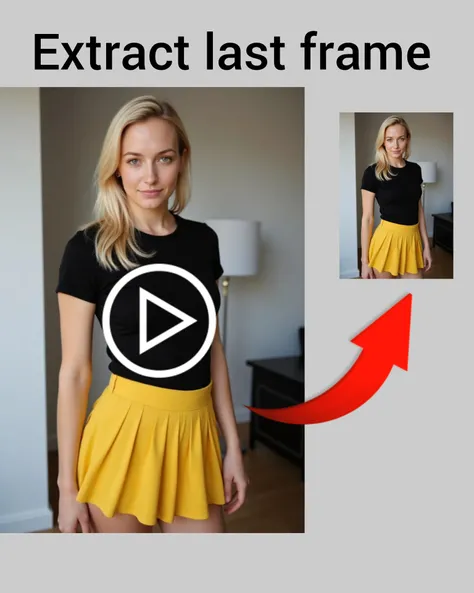
🟧 Extract the desired image from the video
จะตัดภาพต่อเนื่อง 6 ภาพจากเฟรมที่ระบุ。
「This frame(フレーム)I want to make a still image because it looks cool」
「This is where the next video will start、I want to use as a base image」
ต่างๆ、Please use it if you want a frame in the middle of the video。
The targeted frame number may be off, so 6 frames will be extracted。
For example, if you want frame 120, you can specify around 118 and
118,119,120,121,122,123 images will be extracted in 6 frames。
Please confirm if it's the desired frame、Delete any unnecessary ones。
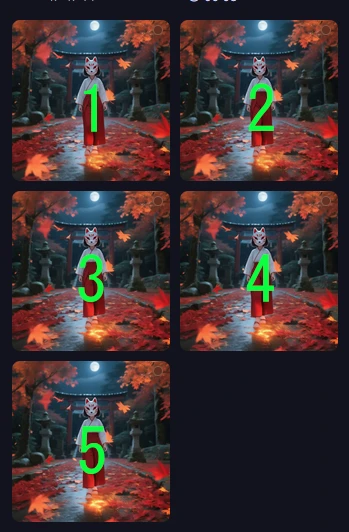
結果/ภาพแสดงประวัติ
[1][2]
[3][4]
[5][6]
จะกลายเป็น。
หากระบุ 118、
[118][119]
[120][121]
จะเรียงเป็นแถวเช่นนี้。
※4張でも6張でも消費コインが同じだったので6張にしてあります。
🟧 ไม่แน่ใจเลขหมายเฟรมที่ต้องการ
🟡 Check
fps30の動画で3.7秒目ถ้าเช่นนั้น 30x3.At around the 7th and 111th frame。
Let's try cutting from around 109。
It's quite vague to say a certain number of seconds, so it might be difficult, but😅
🔵ในแอปย่อย fps1 の動画を作る
ในแอปย่อย「เปลี่ยนความเร็วในการเล่น」ได้ตั้งค่าไว้แล้ว。
準備作業として再生速度変更アプリでfps1のスローのコマ送り動画を作ってください。(消費コイン6くらい。長さ次第でかわる?)
それを再生して切り取りたい部分の開始付近や終わり付近のまでシークバーを動かして、希望のコマ付近で一時停止。
そのあと矢印キーต่างๆで前後させて希望フレームを探してください。
例えば その希望場所が「1分19秒」ถ้าเช่นนั้น「79秒」です。
fps1は0秒目が1コマ目ですので79秒の表示ถ้าเช่นนั้นおそらく80フレーム目です。
(1くらい前後してしまう事はあります😅 )
ด้วยนี้、You can get an idea of the frame number to extract。
In this app, specify a number a couple frames before the one you have in mind, and you should get the desired frame in the 6 extracted。
If you make a slow-motion video
[ fps: 16.00 → 1.00 ] [ ทั้งหมด: 81frames ] [ ระยะเวลา: 5.06 → 81.00 วินาที ] This information will also be displayed。
[ fps16を1に変更 ] [ 総フレーム数81 ] [ 再生時間 5.06 → 81秒 ]
と言う意味です。
PC上でコマ送りやカウントが出るビュワーがあるถ้าเช่นนั้นそちらを😅

ยังไม่มีข้อมูล


Rex.
433
204.5K

การแนะนำที่เกี่ยวข้อง