Generate
History
Private Creation
Details
226
45
2026-02-24 05:27:19 Update
This is the Easy version for adding text. It's designed for when you just want to add some simple text without making it a complex artistic expression.
※ Includes a bonus saturation adjustment (B&W to Vivid) feature. 😅
🟦 Default Values
Font Size: 80
Vertical Position: Center
Horizontal Position: Center
Text Color: White
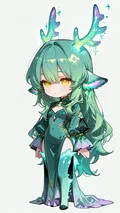
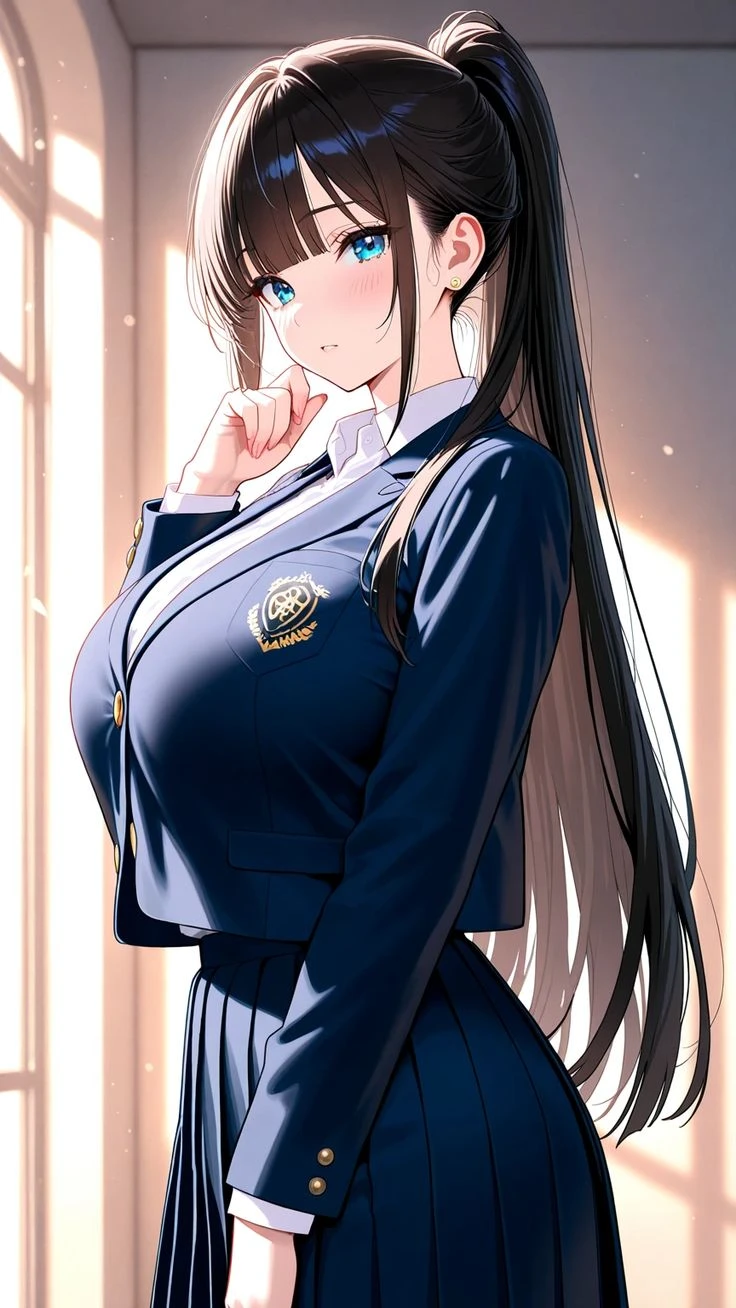
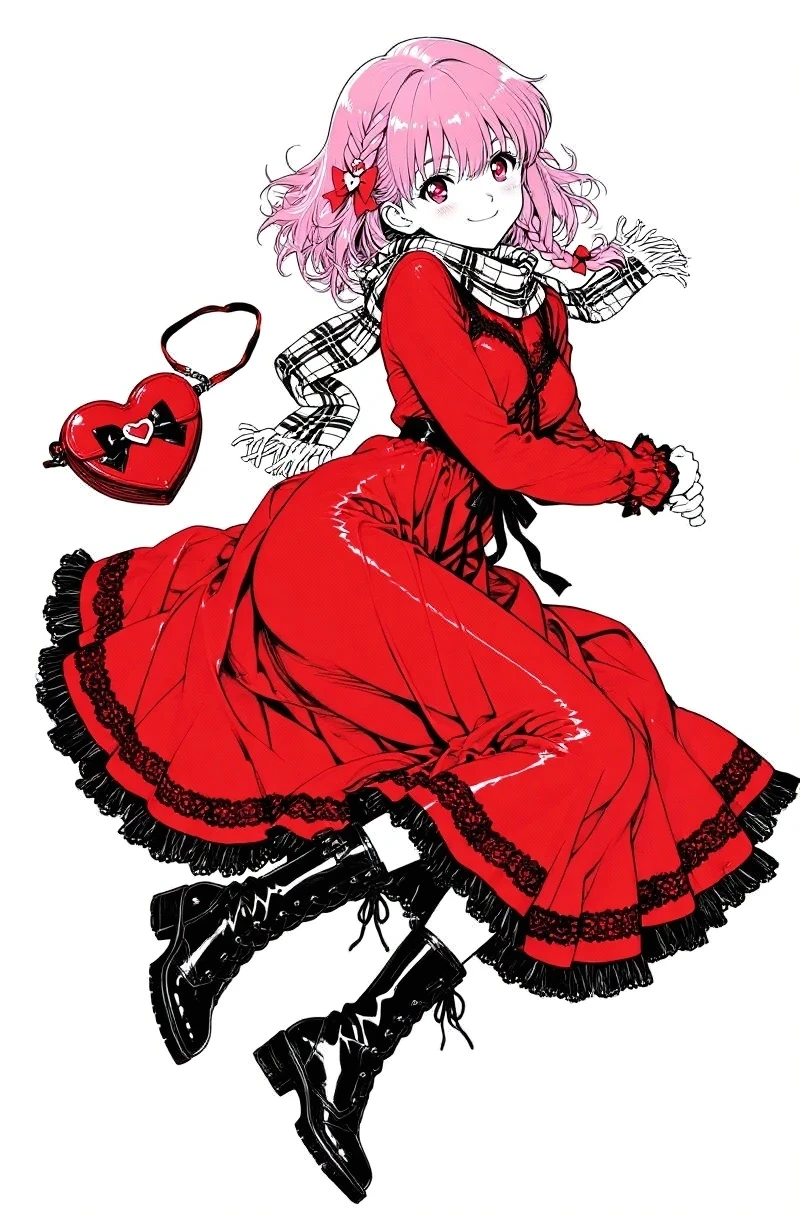
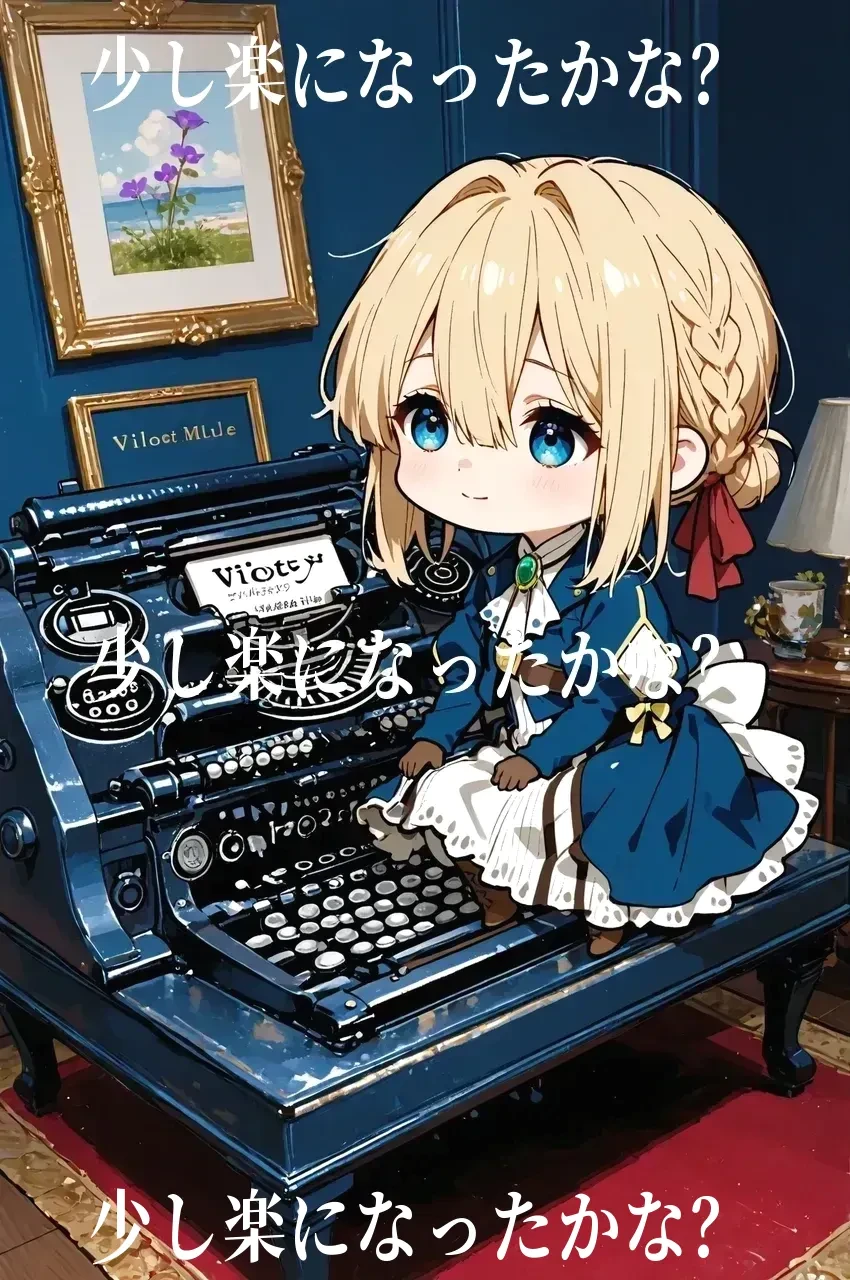
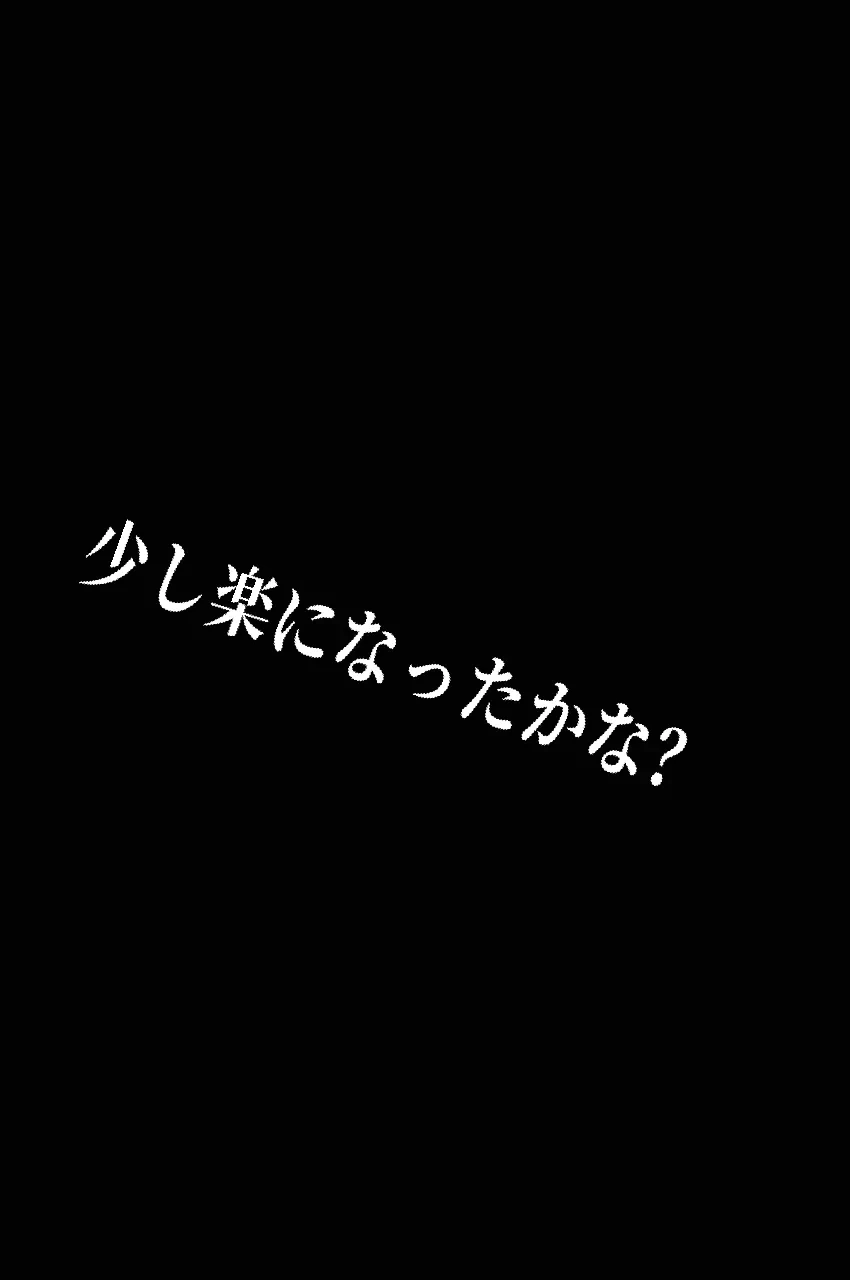
The text in the middle of the first cover image (colored) shows the default automatic centering of this app.
This image is 850*1280. You can see the relationship between font size 80 and a width of 850.
If the image is smaller, you must decrease the font size, or it will go off-screen.
The sample shows one line, but any number of lines is fine. Spaces and line breaks are supported.
Below that, for reference, are examples of "1: Top Alignment" and "3: Bottom Alignment" added separately.
If you don't need changes, just type your text. It will appear right in the center.
If you don't use line breaks, the text will stay in one horizontal line and go off-screen. For the cover image size, it's recommended to add a line break every 10 characters or so.
To change color or size, only modify the necessary parts.
🟧🟧🟧🟧🟧 Modify only what's needed below 🟧🟧🟧🟧🟧
🟧 Text Size
Set by the number of pixels.
🟧 Text Color
Select a color from the picker.
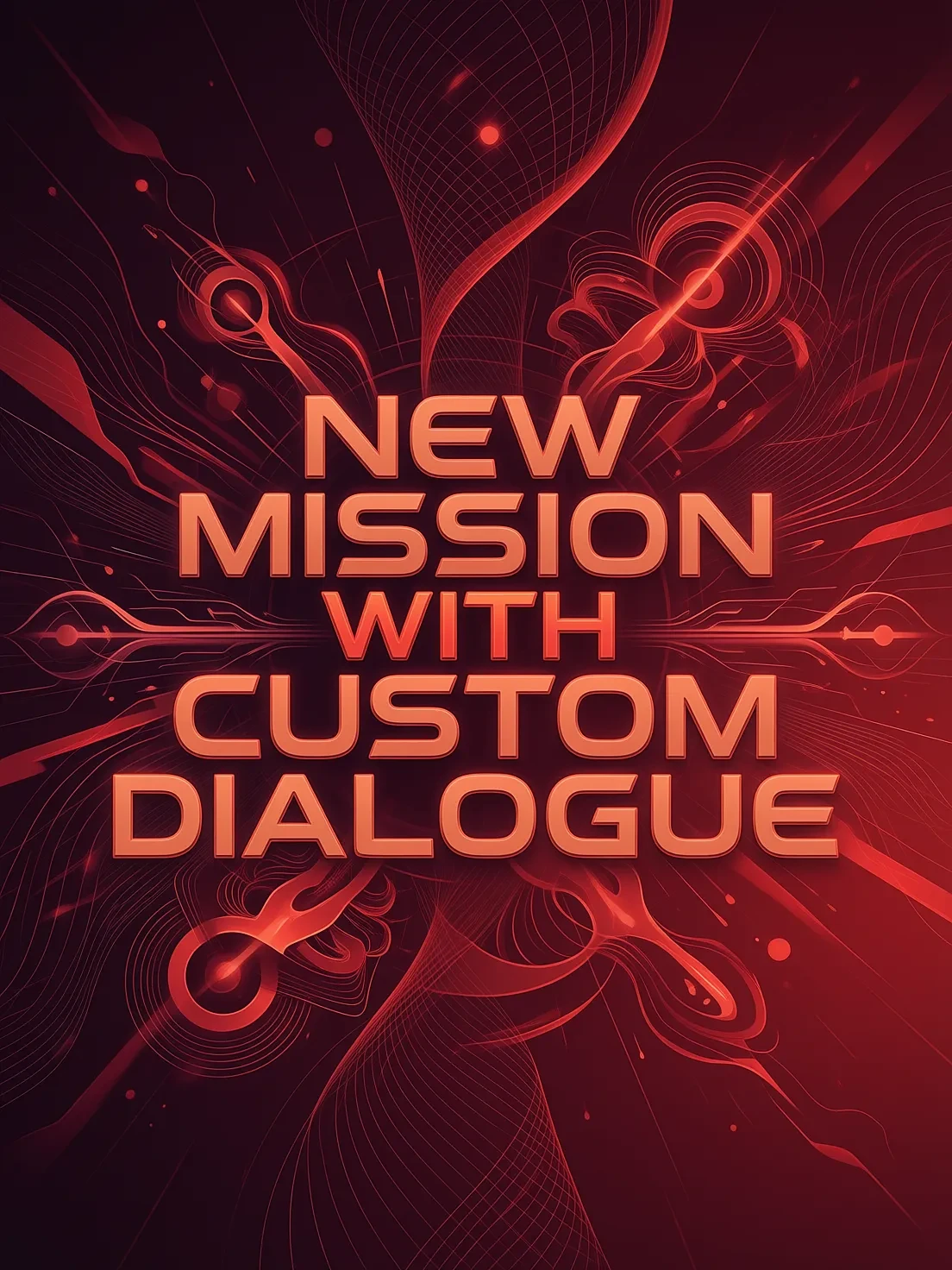
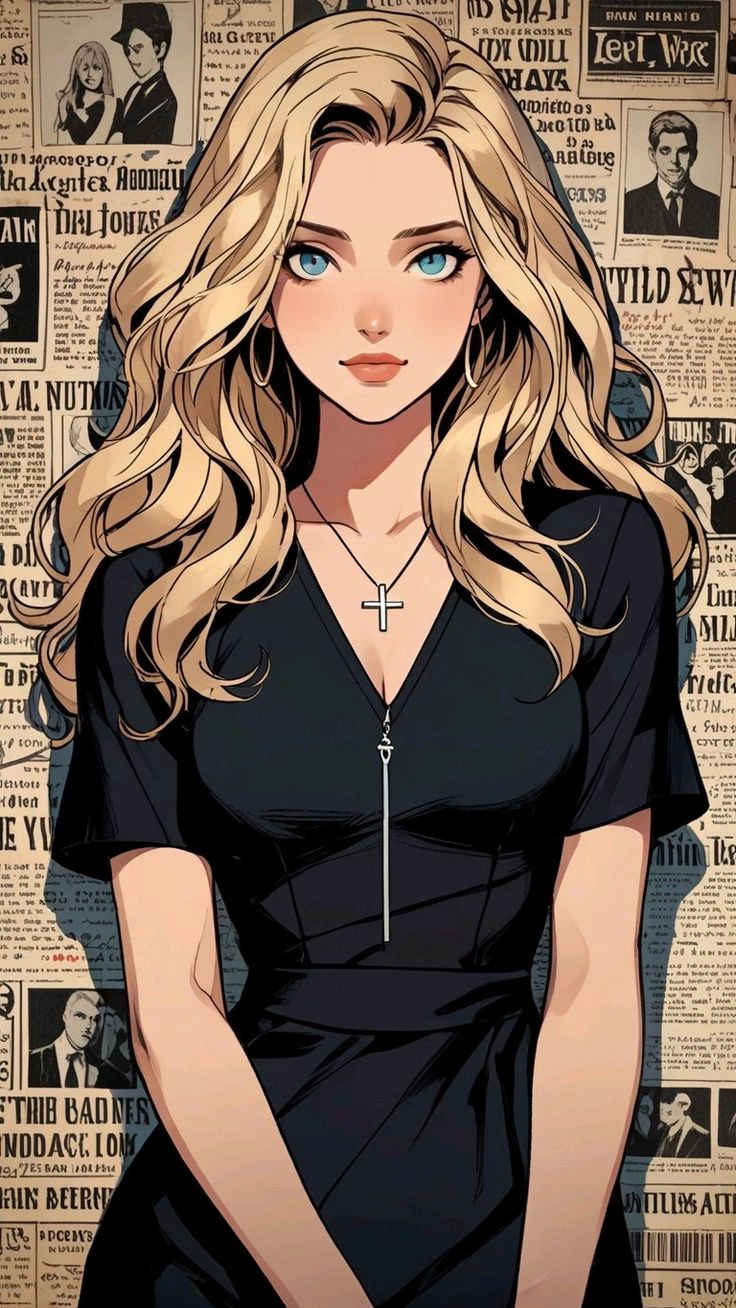
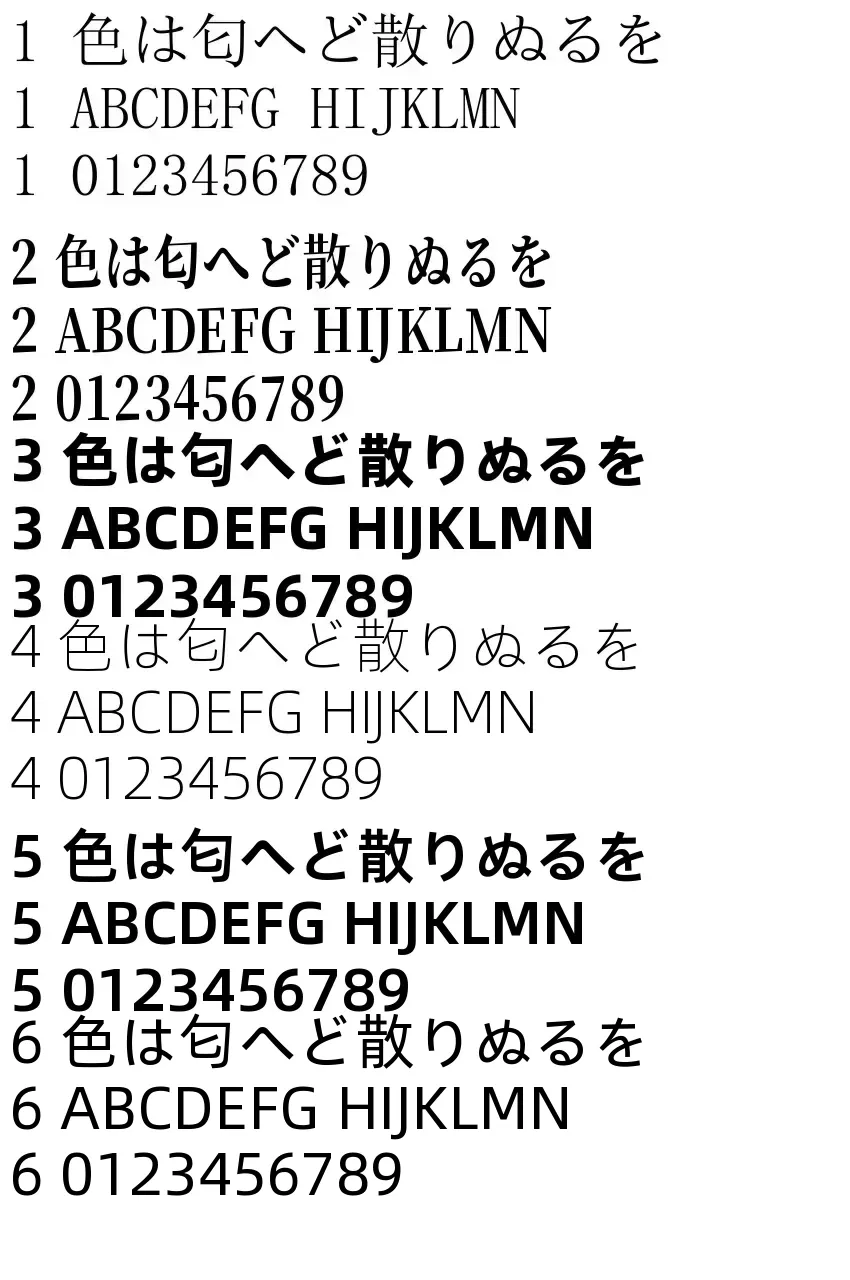
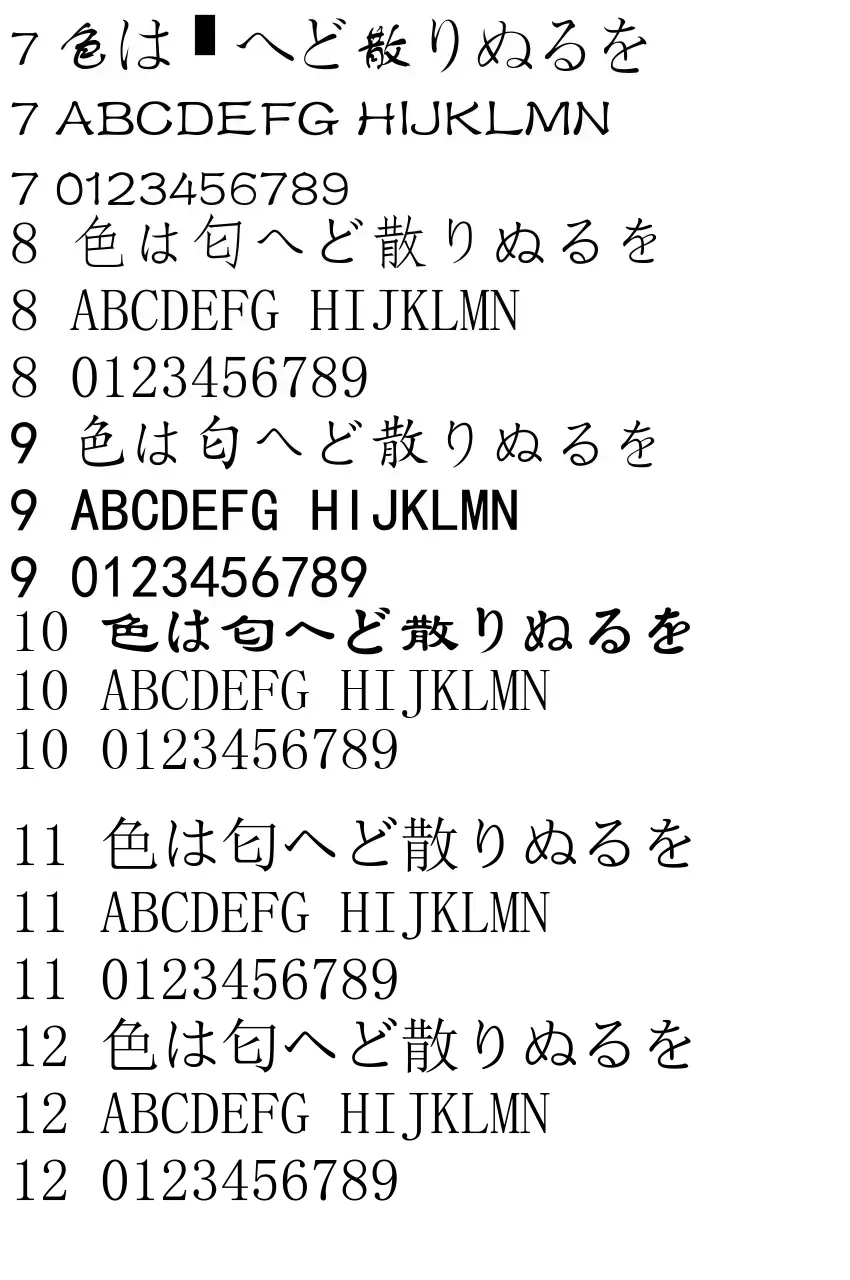
🟧 Font Type (refer to image)
Types 1 and 2 are less likely to have character display issues.
🟧 Vertical Position (Top, Mid, Bottom)
1 Top / 2 Center / 3 Bottom
🟧 Horizontal Position (Left, Mid, Right)
center / left / right
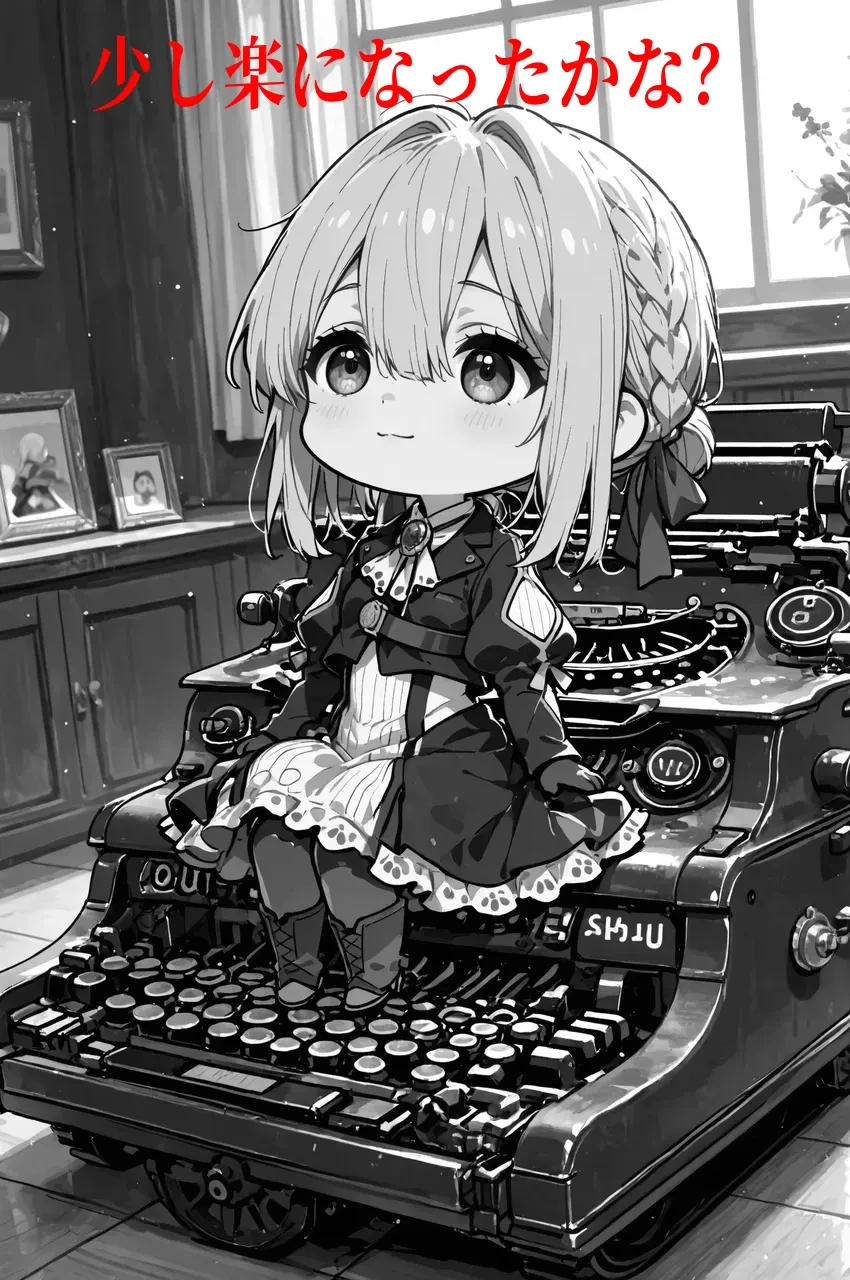
🟧 Rotation (Cover Image 5)
Rotates 360 degrees with the center of the text string as the pivot point.
For convenience, 360 is used for the 0 position. With 0 as the normal position:
Positive values (0.1 to 360.0) specify counter-clockwise rotation.
Negative values (-0.1 to -360.0) specify clockwise rotation.
-20 lowers the right side by 20 degrees.
+20 lowers the left side by 20 degrees.
180 is upside-down text.
(※ Since SeaArt may error with a default value of 0, 360 is used instead)
🟧 Saturation (Bonus feature, not usually used)
Lower the saturation if needed to make the text more readable.
※ 0 is treated as an error, so use a negative value (e.g., -0.01) for B&W.
1.00: Original image.
2.00: 200% saturation (100% increase).
If you enter only a space in the text field and run it, no text will be written, allowing the app to act as a "Saturation Changer."
🟧 Resize
SeaArt downscales images with a long side over 1280 to 1280. To change this, turn on the switch and specify the long side size. Since it's already been downscaled once, enlarging it significantly may reduce image quality.
【Advanced Versions】
Text in Still Image Lite
https://www.seaart.ai/ja/workFlowAppDetail/d5qrj3le878c73ao0ls0
Text in Still Image Pro
https://www.seaart.ai/ja/workFlowAppDetail/d5r38ute878c73a6n030

No data available

Rex.
433
204.7K

Explore Related