Generate
History
Private Creation
Details
3
4
2026-05-02 20:13:23 Update
How to Use / Instructions
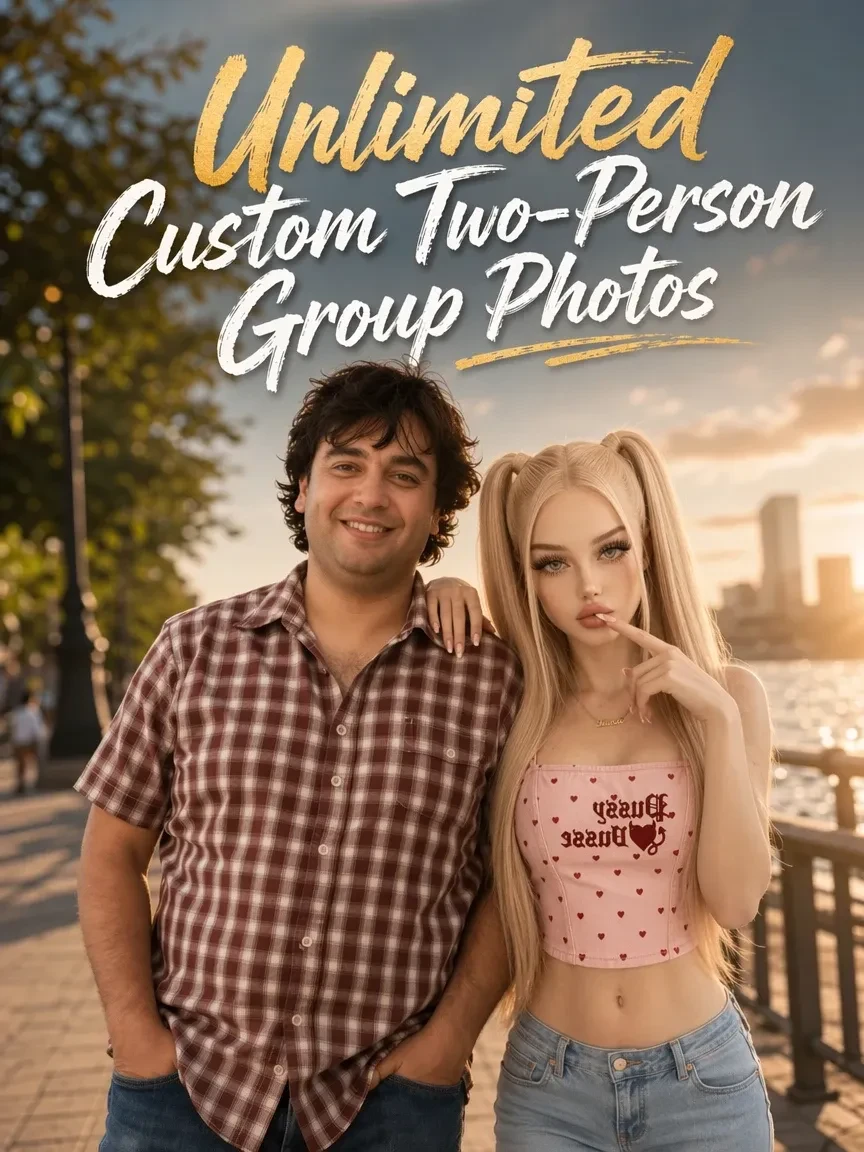
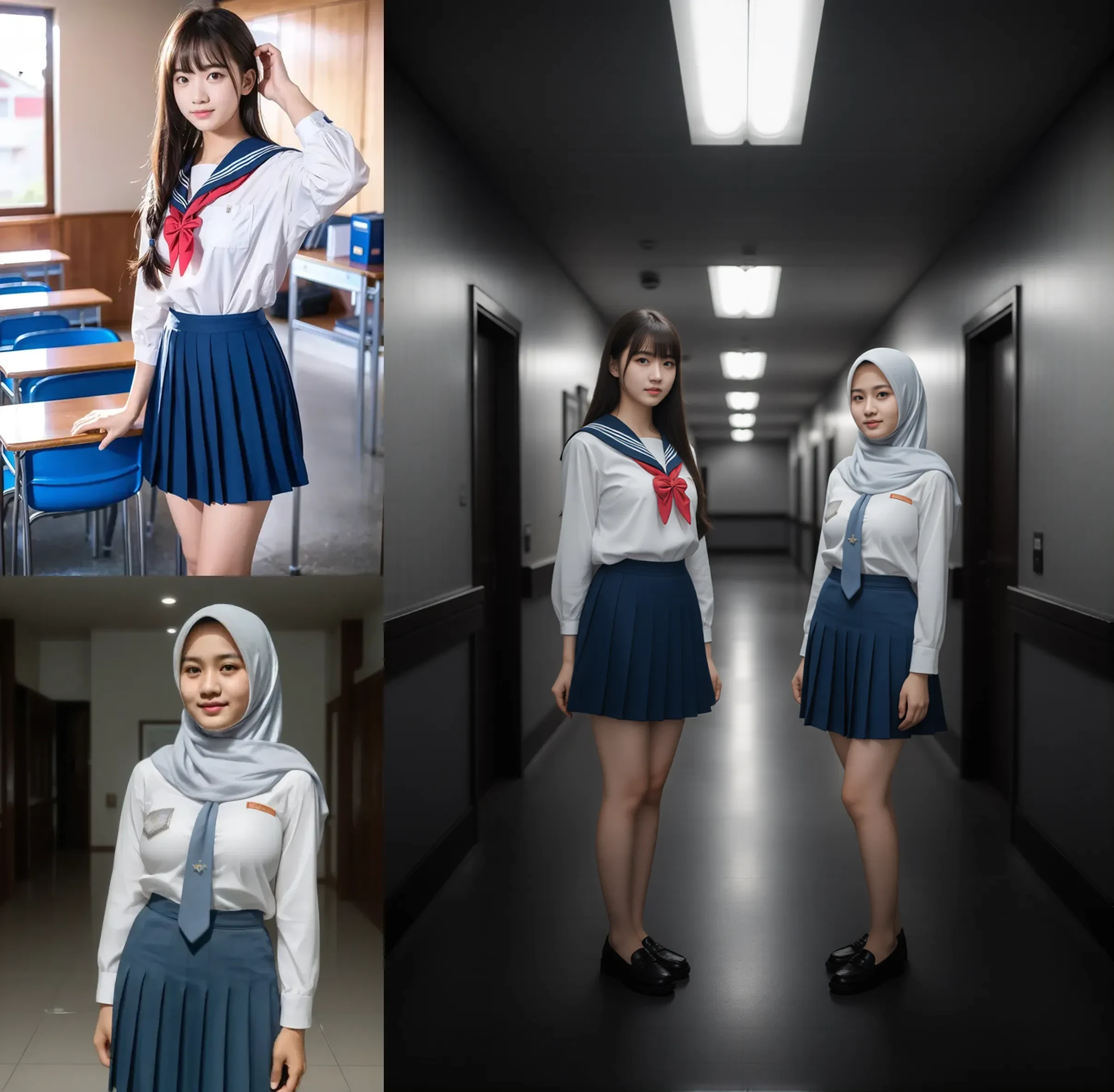
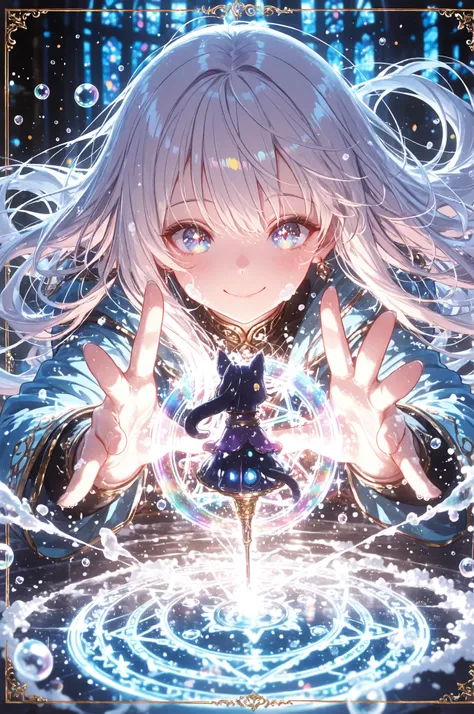
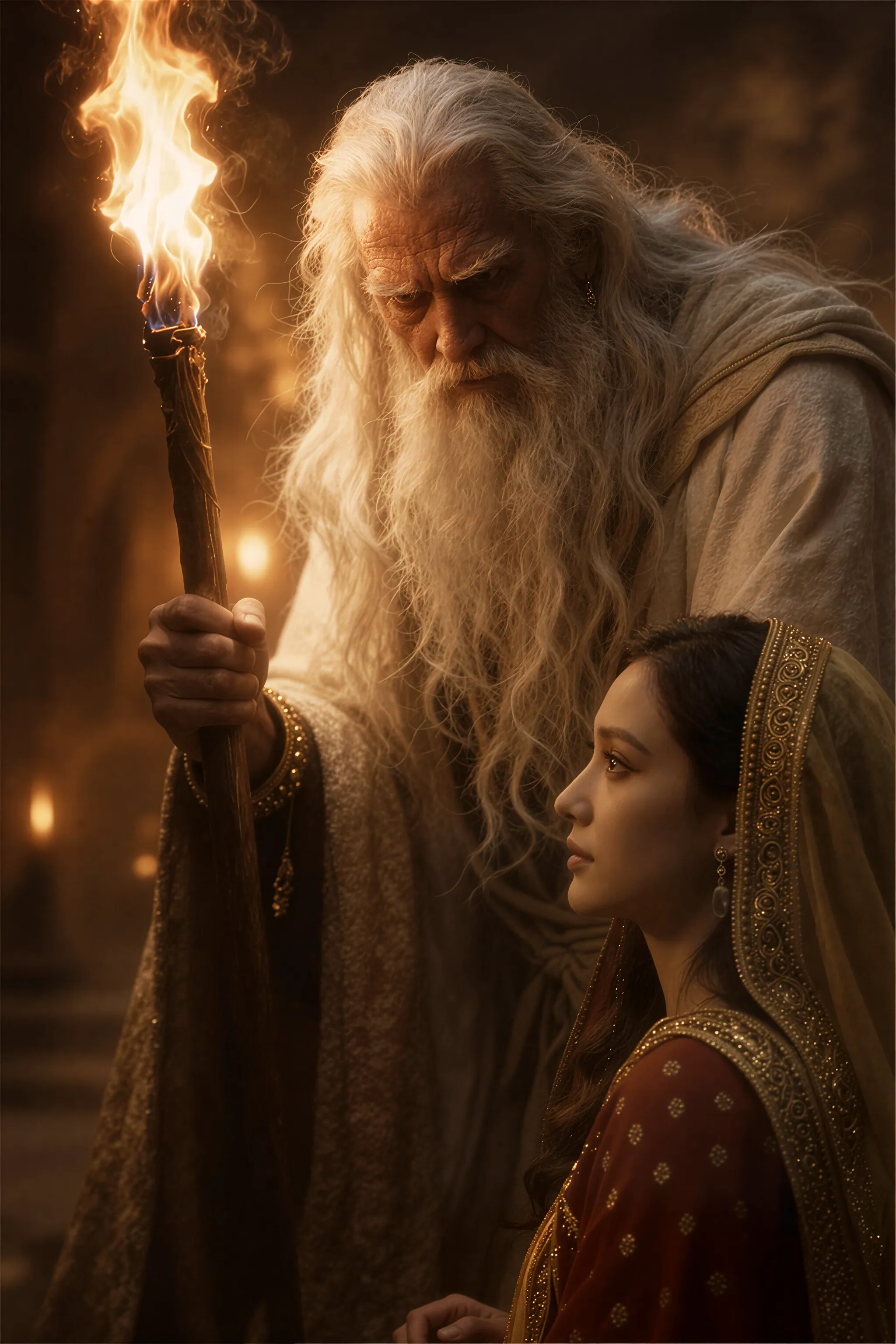
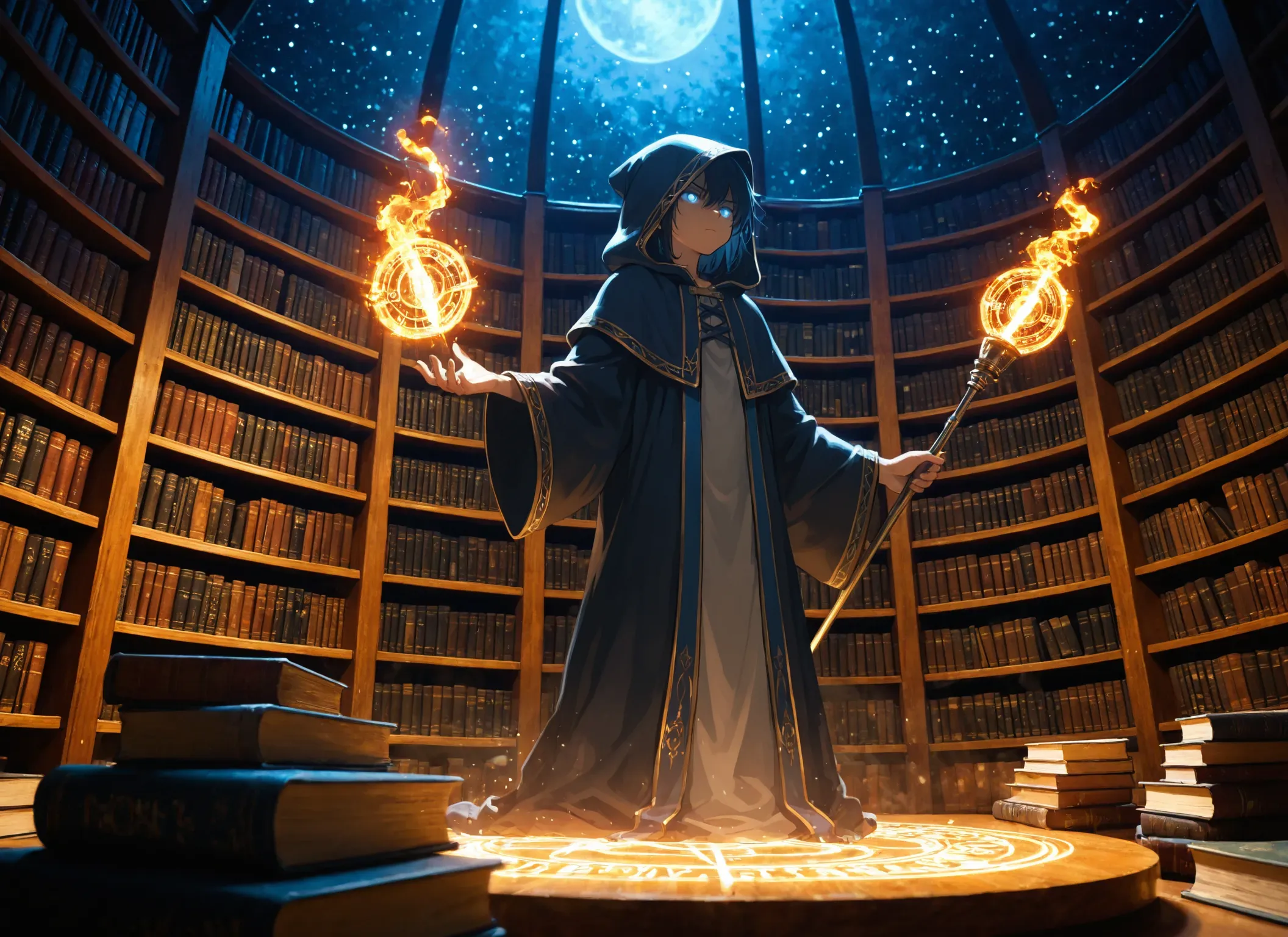
This workflow allows you to apply different Checkpoints and prompts to distinct regions (Primary and Secondary), enabling two art styles to coexist in a single image.
Load Image: Load your source image for image-to-image.
Select Models: Choose your Primary Checkpoint and Secondary Checkpoint.
Define Primary Mask: Specify the target objects to be masked as the Primary Region.
(Note: Separate multiple target keywords with a period .)
Primary Prompt: Enter the positive prompt for the Primary Region.
Secondary Prompt: Enter the positive prompt for the Secondary Region.
Global Prompt: Enter the prompt that applies to the entire image (e.g., camera angle, lighting, scenery).
Negative Prompts: Configure the negative prompts in the same manner (Primary, Secondary, and Global).
Set Output Size: Configure the base resolution.
(Note: The final output will be automatically upscaled by 1.5x from this setting)
Generate: Click "Queue Prompt" to start the generation.
Tips & Notes:
Quality Tags: It is recommended to input quality tags (e.g., best quality, highres) directly into each respective prompt (Primary and Secondary) for the best results.
Primary Checkpoint Setup: Please ensure that you select the same model for both Primary Checkpoint input fields.
Model Compatibility: This workflow is specifically designed and optimized for Illustrious models.
Performance & VRAM: Due to high VRAM usage, you may encounter errors during peak hours or periods of high traffic.

No data available

Siesta
11
376

Explore Related